
Add and manage CatPawOpen data sources
Calyx TV includes no built-in sources or videos. You can add your own CatPawOpen data sources, enable a subscription and choose its sites in Discover.
Updated
What a CatPawOpen source is
Alongside local files and cloud drives you sign in to, Calyx TV can load user-added data sources that follow the CatPawOpen protocol. The app itself ships with an empty library and includes no preinstalled sources or media catalog.
A data source is code you choose to install. Only add sources you trust and have the right to use. A subscription address must be an HTTP or HTTPS URL ending in index.js or index.js.md5.
Add a source address
When no source is configured yet, Discover shows an Add source button. You can also open source management at any time from Settings.
On iPhone and iPad, open Settings → Source address to enter Subscriptions. On Mac, open Settings and choose Source address.
- Open Subscriptions from Settings → Source address, or choose Add source on an empty Discover screen.
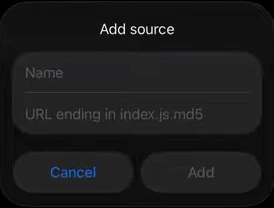
- Tap or click Add source (+) to open the input dialog.
- Enter an optional display Name and paste a valid HTTP or HTTPS URL ending in index.js or index.js.md5.
- Choose Add (or Save on Mac), then enable the subscription so it becomes the active source.
Choose a site in Discover
Once a subscription is enabled, open Discover. Use the site selector to choose among the sites provided by the active source, then browse its categories or open a title’s details.
If the active source provides its own web configuration page (/website), Calyx TV lets you open that source-owned page from Search or source management to adjust source-specific options.
Switch, update or remove subscriptions
You can keep several source addresses in Subscriptions and choose which one is enabled. On iPhone and iPad, swipe a subscription row to reveal Enable, Disable, Update, Edit and Delete. On Mac, use the source management actions for the saved entry.
Close active video playback before switching to another subscription (on Mac, confirming a switch ends current playback and saves your progress). Editing the address of an enabled source disables it first until you enable the updated entry again.
iCloud sync and common errors
In Settings → iCloud Sync, syncing Source addresses & config is optional and off by default. When turned on, Calyx TV merges encrypted source addresses, names and order through your iCloud account; each device still chooses its own active source, and source scripts or login credentials are not uploaded to iCloud.
If a subscription does not load or fails to activate, check the status message shown in Subscriptions:
- Invalid source address: confirm the URL starts with http:// or https:// and ends with index.js or index.js.md5.
- Digest verification failed: the index.js.md5 checksum did not match the downloaded script; try Update later or check the source file.
- DNS, network or timeout error: check your device connection or DNS settings, then retry.
- No sites or all sites disabled: confirm the subscription is Enabled, run Update, or check enabled sites in source management.
- Playback still running when switching: close the player first, then switch the active subscription.
Still need a hand?
Ask in the Calyx TV community. Include your device, app version and what you tried so we can help you narrow it down.