
Choose subtitles and fix their timing
Calyx TV supports embedded subtitles, including image-based PGS. Use the subtitle menu to select a track, then adjust Subtitle delay if the words arrive before or after the dialogue.
Updated
Choose a subtitle track
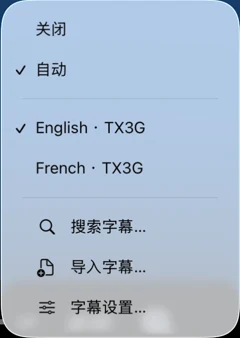
Open a video and reveal its playback controls. Open the subtitle menu and choose the language or track you want. Automatic lets the app choose a track; Off hides subtitles.
The list comes from the current video and any subtitle files you have added. If your preferred language is missing, try importing a matching file or searching for subtitles. Available options depend on the video and player in use.
Using PGS subtitles
PGS subtitles store each subtitle as an image. If your video contains a PGS track, select it from the subtitle menu as you would another embedded track.
The lettering is part of the image, so text font and color settings do not redraw it. Subtitle size and placement can also depend on the active player. If you need editable text styling, use a matching text subtitle file.
Fix subtitles that are early or late
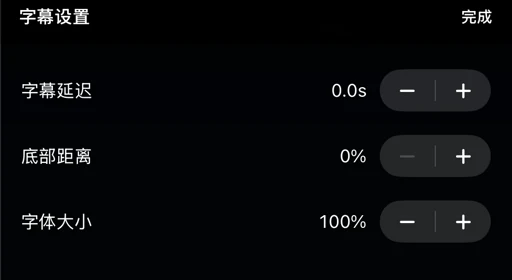
From the subtitle menu, open Subtitle Settings. Play a short line of dialogue and adjust Subtitle delay with the minus or plus button. The change takes effect while you watch.
- If subtitles appear too early, increase the delay. For subtitles one second early, try +1.0 seconds.
- If subtitles appear too late, decrease the delay. For subtitles one second late, try −1.0 seconds.
- Replay the same line and make smaller adjustments. Each tap changes the delay by 0.1 seconds.
- Check another point later in the video. If the offset keeps growing, find a subtitle file that matches this version of the video.
Change size and distance from the bottom
Subtitle Settings also provides Bottom margin and Text size. Raise the bottom margin to move subtitles away from the bottom edge, and change text size to suit your viewing distance.
Delay is saved for the current video. Size and bottom margin are shared preferences. The visible result depends on the subtitle format, its own styling and the player; styled ASS subtitles and image-based subtitles can behave differently from plain text.
Import or search for a matching subtitle
Choose Import Subtitles in the subtitle menu to open the system file picker. Supported external file formats are SRT, ASS, SSA and VTT. Select a file for the same cut or episode as your video.
Search Subtitles lets you look up available subtitles online. Check the language and version before selecting a result. If online search is unavailable, you can still import a local file.
A fixed delay corrects a constant offset. A different edit or frame rate can cause the timing to drift throughout the video; choosing a matching file is usually more useful than repeatedly changing the delay.
Still need a hand?
Ask in the Calyx TV community. Include your device, app version and what you tried so we can help you narrow it down.